

Framer is an incredible platform for designing lightning-fast, visually stunning websites. But to truly scale your brand, your site needs to be discoverable in multiple languages and optimized for the new era of AI Answer Engines.
By installing the MultiLipi: AI Translate & Rank plugin, you seamlessly bridge the gap between world-class design and enterprise-grade Generative Engine Optimization (GEO) — without writing a single line of code.
Why Integrate MultiLipi with Framer?
Before diving into the setup, here is what this plugin unlocks for your Framer site:
Zero-Code Localization
No need to duplicate pages or wrestle with complex CMS structures. MultiLipi translates your entire Framer site block-by-block dynamically.
Global SEO Dominance
Your translated pages become instantly indexable by Google in their respective regions — Spanish users find you in Spanish, Japanese users in Japanese.
AI Visibility (GEO)
MultiLipi automatically injects optimized JSON-LD Schema and generates llms.txt files directly into your Framer site's infrastructure, making ChatGPT, Perplexity, and Gemini cite your brand.
المتطلبات الأساسية
Before you begin, ensure you have:
Step-by-Step Installation Guide
Follow these steps to get MultiLipi running on your Framer site in minutes.
Open Your Framer Project
Log in to your Framer account and select the specific project workspace where you want to add multilingual capabilities.
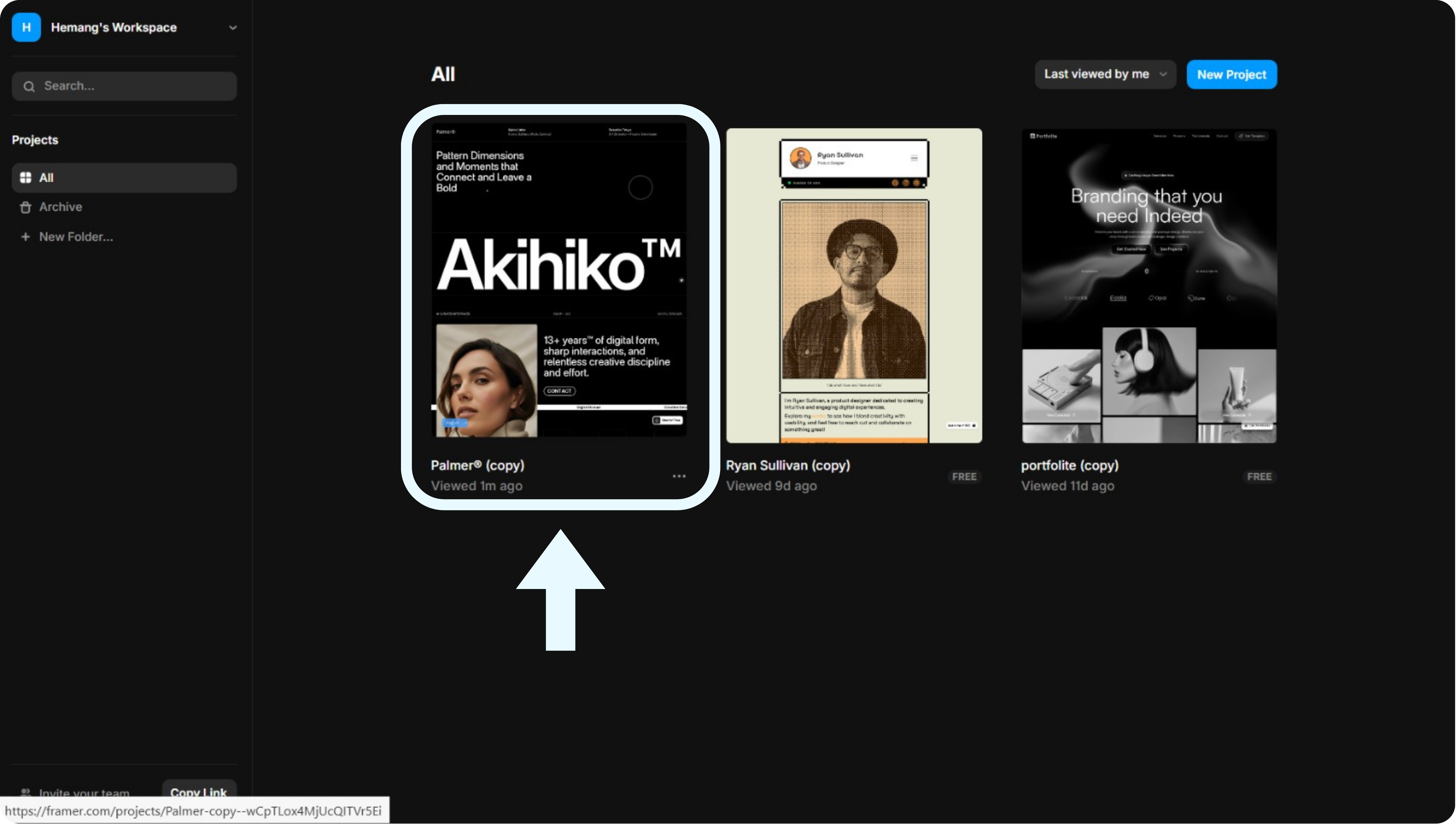
ملاحظة: Make sure you have editor access to the project. Viewer-only accounts cannot install plugins.
Access the Plugins Menu
Inside the Framer editor, click the Main Menu Icon (the Framer logo) at the top-left of your screen. Scroll down and select Plugins from the dropdown list, then choose Browse All.
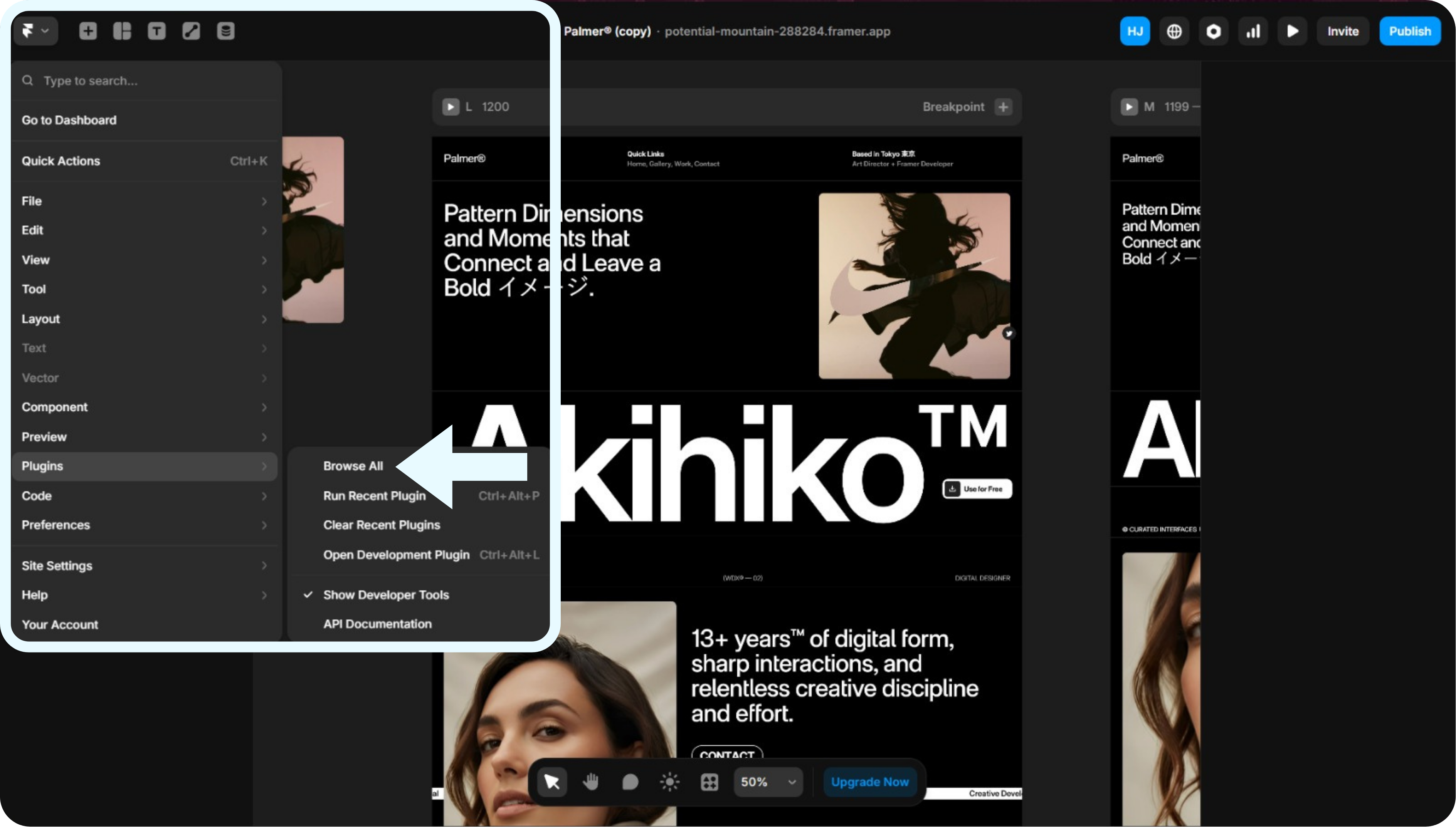
ملاحظة: The Plugins option is located near the bottom of the main dropdown menu.
Search & Install MultiLipi
A plugin search popup will appear. Type "MultiLipi" into the search bar, locate the plugin named MultiLipi: AI Translate & Rank, then click on it to launch the setup window.
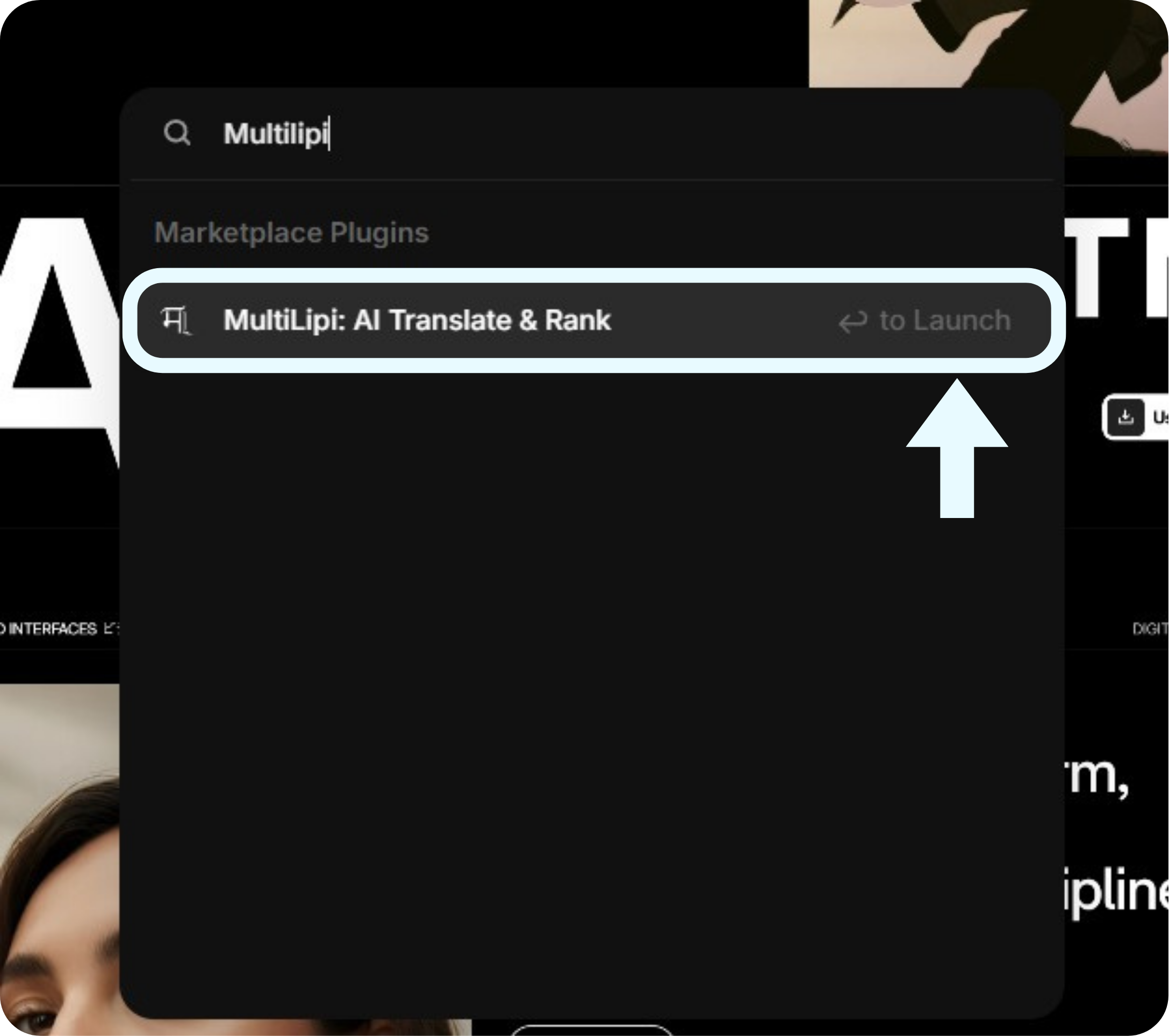
ملاحظة: If the plugin doesn't appear, ensure your internet connection is stable and try refreshing Framer.
Connect Your Project Key
الـ MultiLipi Setup modal will prompt you to connect your account. Paste your unique Project Key (e.g., a1ee519f…) into the text field, then click the blue Connect to MultiLipi زر.
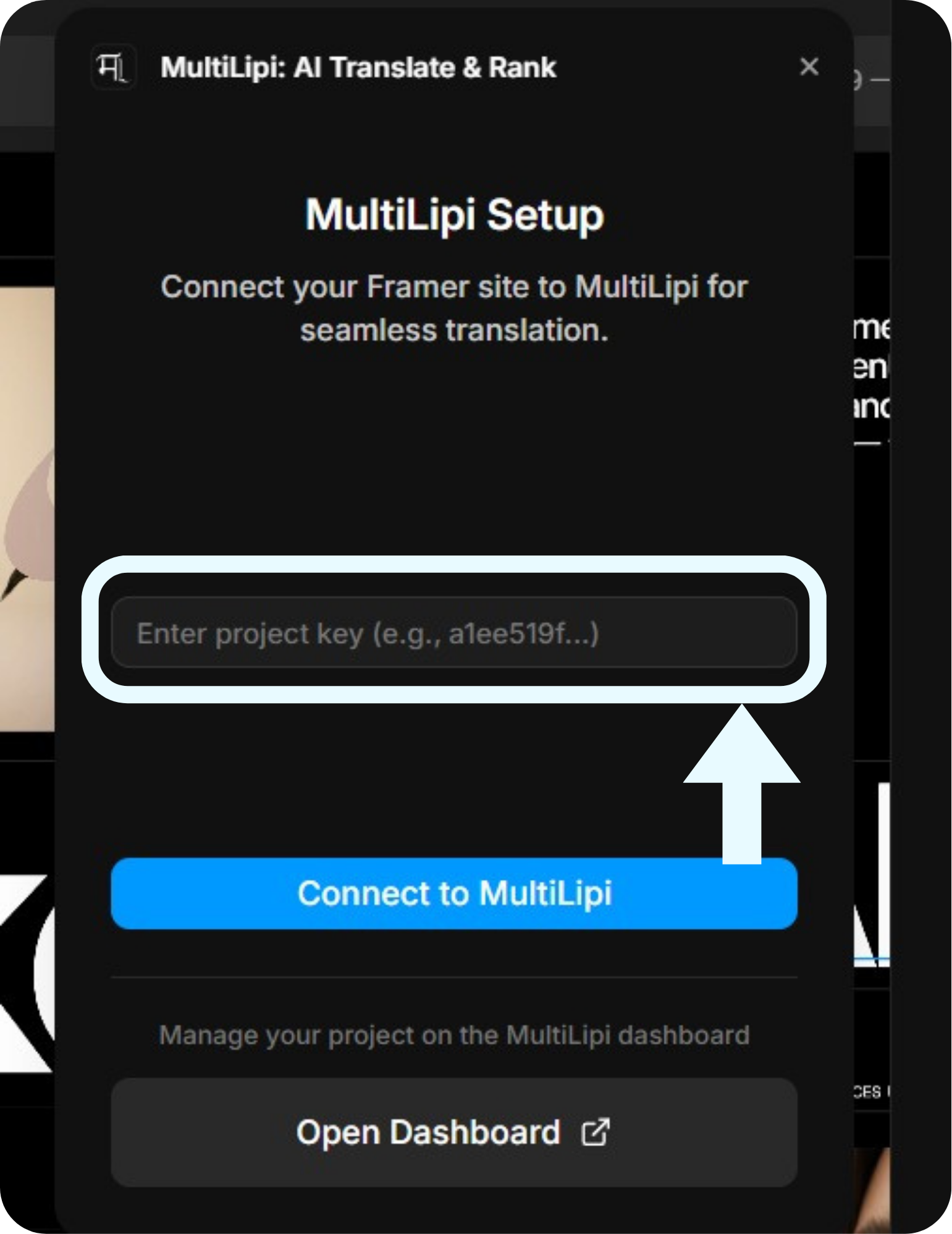
ملاحظة: Your Project Key is found in your MultiLipi Dashboard under project settings. Keep it private — treat it like a password.
Verify the Connection
Once connected, the plugin window updates to show your active configuration. You will see a green dot indicating "Connected to Project," along with your Original Language (e.g., English) and configured Target Languages (e.g., Hindi, French).
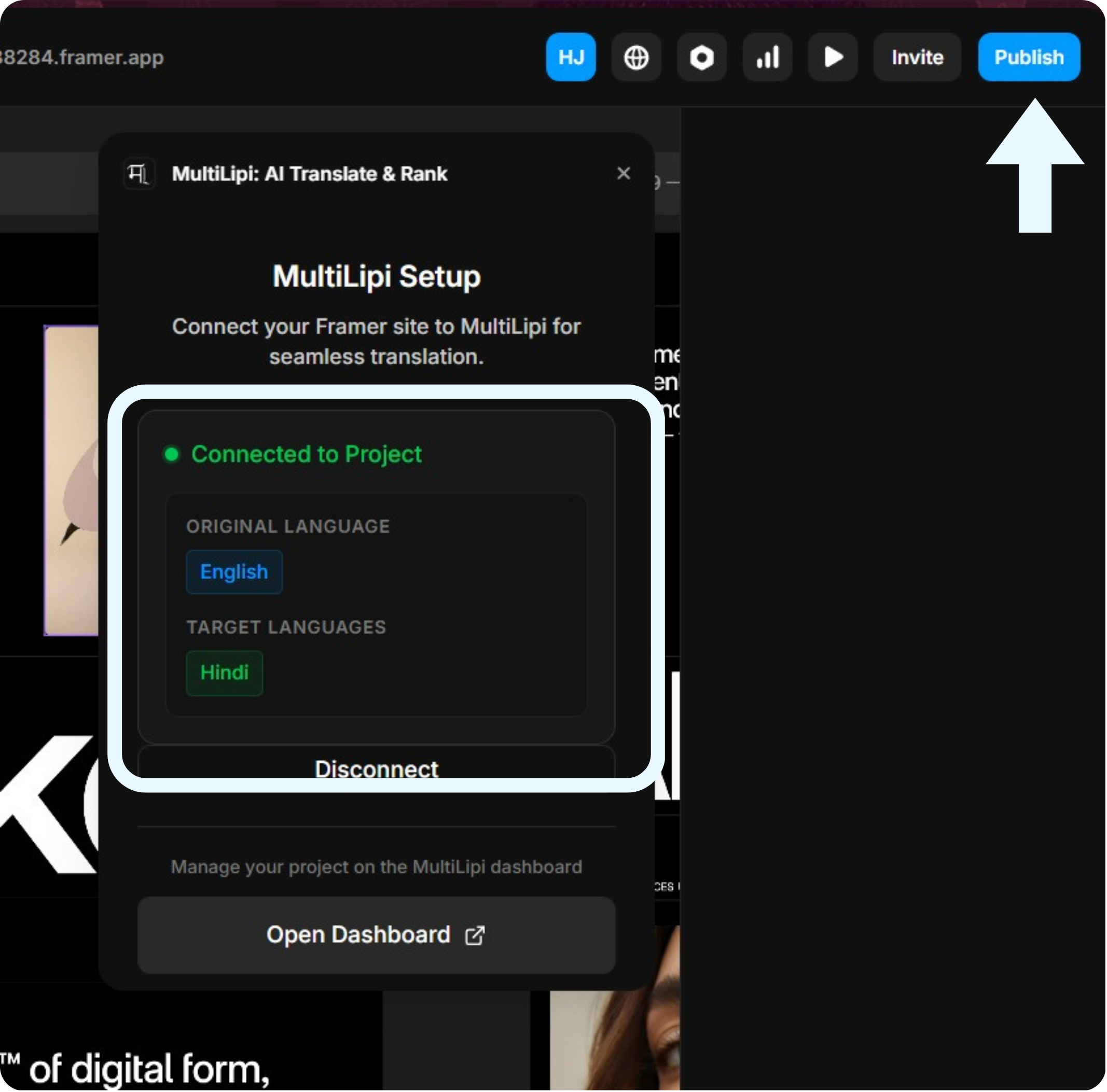
ملاحظة: If you need to add or remove languages, click "Open Dashboard" to manage them in your MultiLipi account.
Publish Your Site
MultiLipi is now injected into your site's code! To push these changes live:
Post-Installation & Troubleshooting
Once published, visit your live website. You should now see the MultiLipi language switcher (usually floating in the bottom-left corner by default). Change the language to trigger your first translations!