

نشر MultiLipi على Shopify
حوّل واجهة متجرك إلى محرك مبيعات عالمي.
تم بناء Shopify للتجارة، ولكن التوسع العالمي الحقيقي يتطلب أكثر من مجرد تحويل العملات. من خلال دمج MultiLipi، يمكنك نشر بنية الترجمة العصبية التي تُترجم واجهة متجرك بالكامل - من أوصاف المنتجات إلى تدفقات الدفع - مع التعامل تلقائيًا مع إشارات تحسين محركات البحث المعقدة المطلوبة لتصنيف منتجاتك في الأسواق الأجنبية.
يُفصّل هذا الدليل عملية التكامل باستخدام Shopify's theme.liquid الهندسة المعمارية.
1. متطلبات النشر المسبقة
قبل تعديل السمة الخاصة بك، تأكد من أن لديك بيانات الاعتماد التالية:
مفتاح واجهة برمجة تطبيقات MultiLipi
حدد موقع هذا في لوحة التحكم الخاصة بك تحت الإعدادات > عام.
الوصول إلى مسؤول Shopify
يجب أن يكون لديك أذونات لتعديل السمات.
2. الخطوة 1: الوصول إلى بنية السمة
سنقوم بحقن محرك الترجمة مباشرة في ملف التخطيط العام لمتجرك لضمان تحميله على كل صفحة (المنتجات، المجموعات، الصفحات).
- 1
تسجيل الدخول إلى لوحة تحكم Shopify.
- 2
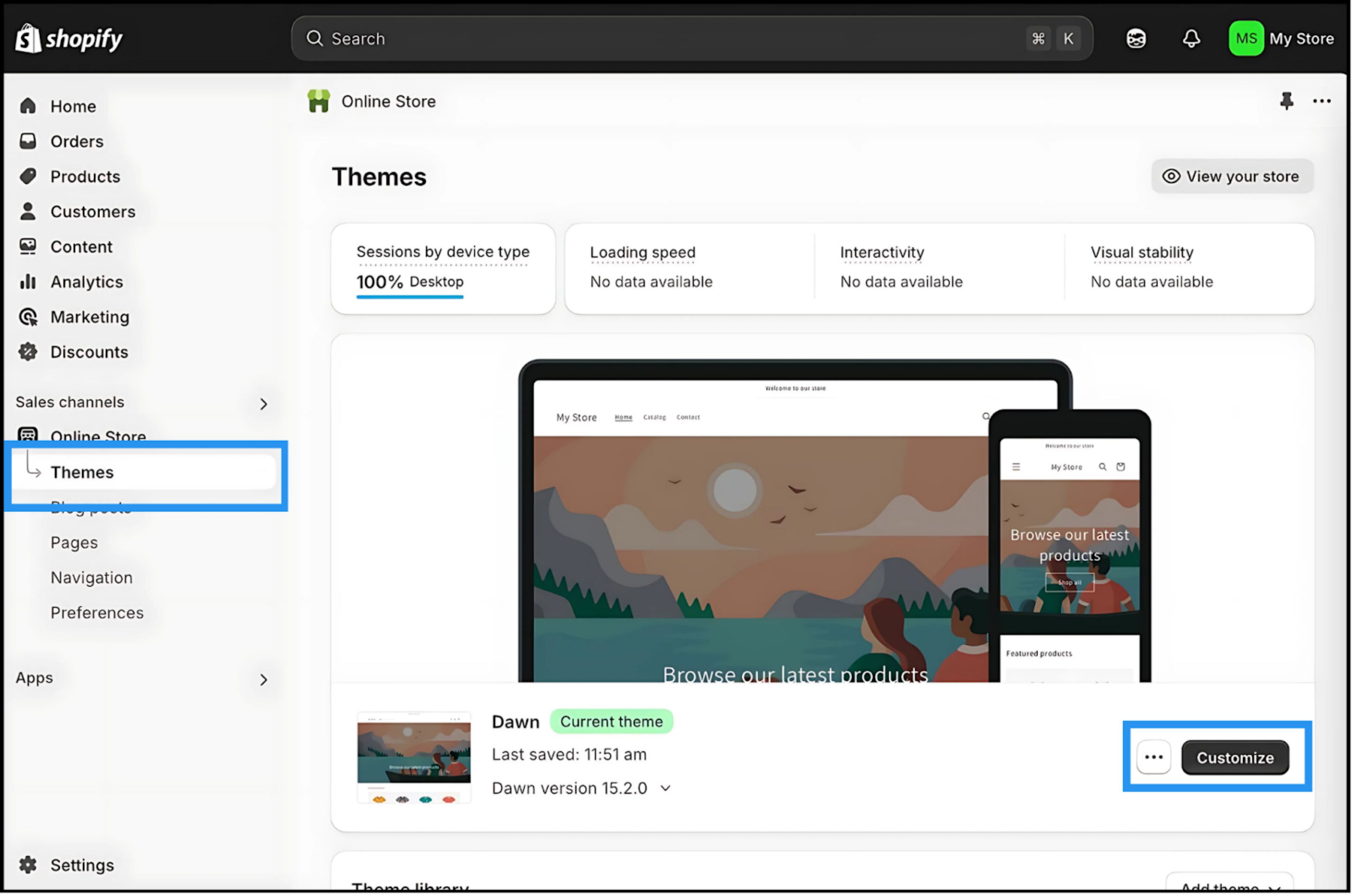
انتقل إلى المتجر عبر الإنترنت > السمات.
- 3
حدد موقع السمة النشطة لديك (Live) وانقر فوق ثلاث نقاط (⋮) زر.
- 4
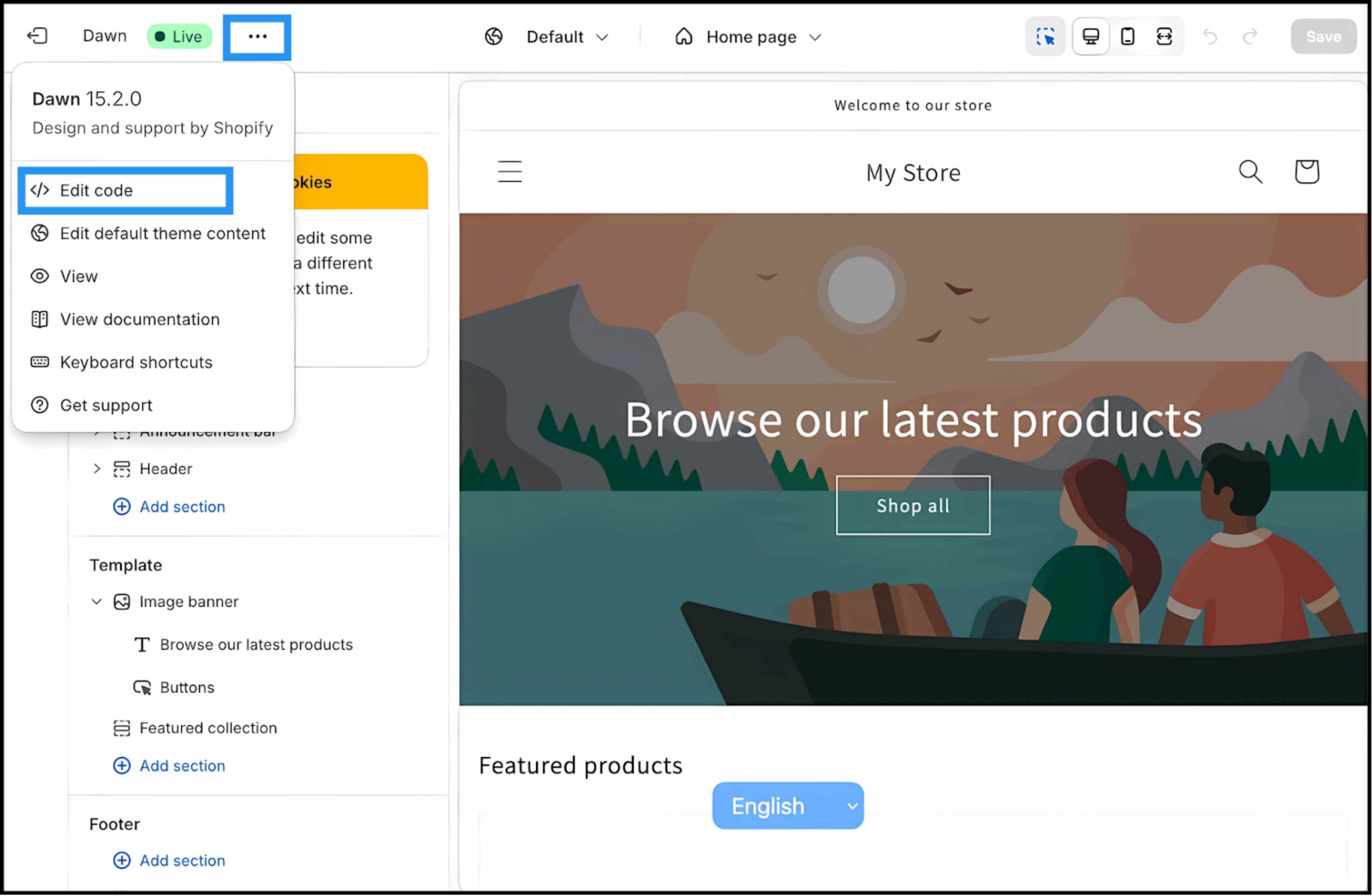
تحديد تحرير الكود.
3. الخطوة 2: حقن سكربت البنية التحتية
- 1
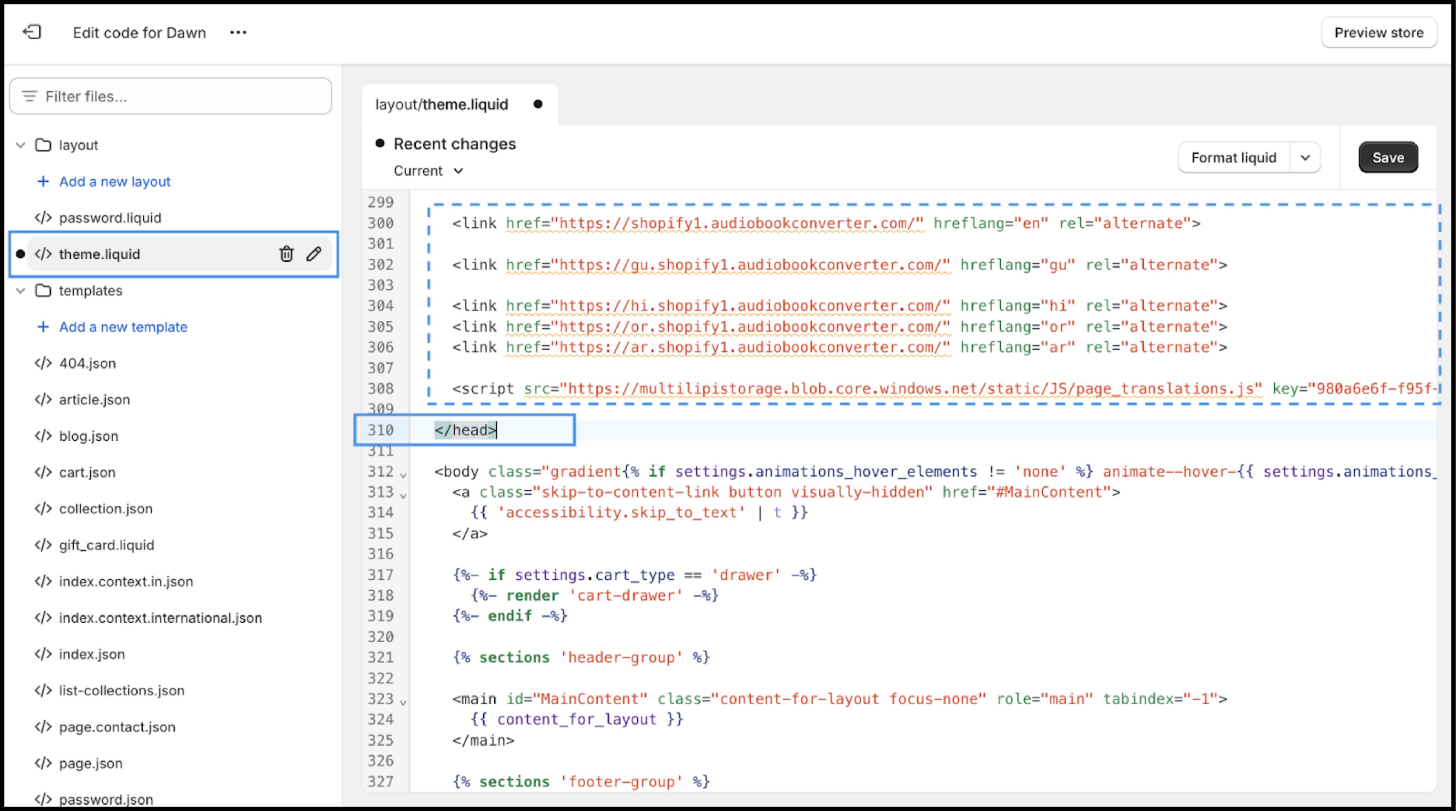
في دليل الملفات (الشريط الجانبي الأيسر)، حدد موقع التخطيط مجلد.
- 2
فتح
theme.liquid. هذا هو القالب الرئيسي لمتجرك. - 3
مرر لأسفل للعثور على الإغلاق
وسم.
الإجراء: الصق نص الاتصال البرمجي
الصق نص الاتصال التالي فورًا أعلاه ال وسم:
⚠️ الإعدادات الهامة
- •استبدال
YOUR_API_KEY_HEREباستخدام مفتاح API الفعلي الذي تم نسخه من لوحة تحكم MultiLipi الخاصة بك. - •انقر حفظ في الزاوية العلوية اليمنى.
4. الخطوة 3: التحقق والإطلاق
بمجرد الحفظ، تصبح البنية التحتية مباشرة.
فتح واجهة المتجر
الانتقال إلى عنوان URL الخاص بموقعك المباشر.
التحقق من واجهة المستخدم
يجب أن ترى محول اللغة مثبتًا في الزاوية السفلية اليسرى (الموضع الافتراضي).
اختبار الترجمة
التبديل إلى لغة مستهدفة. تحقق من ترجمة عناوين المنتجات والأوصاف وأزرار "إضافة إلى السلة" فورًا.
بروتوكول استكشاف الأخطاء وإصلاحها
- •لا ترى المحول؟ تأكد من أن السكربت يقع قبل إغلاق
علامة، وليس أسفلها. - •التخزين المؤقت: إذا كنت تستخدم تطبيق تخزين مؤقت لطرف ثالث، فقم بمسح ذاكرة التخزين المؤقت.
- •متخفي: اختبر في نافذة متصفح متخفي/خاص لتجاوز ذاكرة التخزين المؤقت للمتصفح المحلي.
5. الخطوات التالية: تحسين التجارة
الآن بعد أن أصبح المحرك قيد التشغيل، قم بتحسينه للمبيعات:
اقفل علامتك التجارية
استخدم المسرد لمنع ترجمة أسماء المنتجات أو المصطلحات التجارية حرفيًا.
SEO Activation
تأكد من تمكين "ترجمة الرابط" في إعدادات MultiLipi الخاصة بك حتى تتمكن عناوين URL لمنتجاتك (على سبيل المثال، /products/red-shoes) تصبح كلمات مفتاحية مفهرسة في الأسواق المستهدفة (مثل، /products/zapatos-rojos).
محاذاة الدفع
تحقق من أن إعدادات الدفع الخاصة بك في Shopify تسمح بحقول محلية إذا كنت تستخدم Shopify Plus.